Free · Mac and Windows
A vault for
private files.
How it works
Unlock
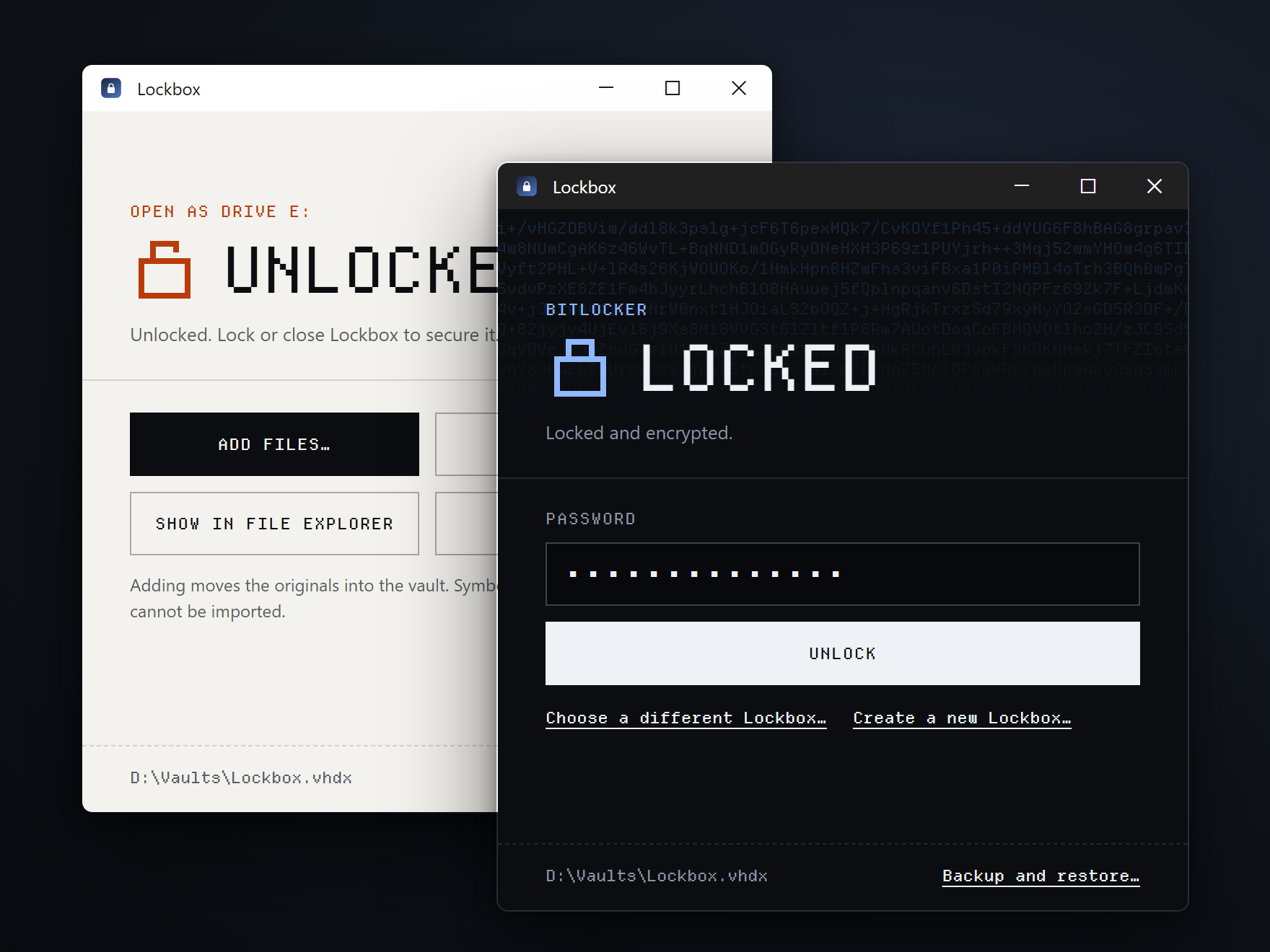
Type your password. The vault opens like a drive.
Add files
Move files in. On disk they stay encrypted.
Lock
One click. Lockbox checks the vault really closed before it says Locked.
Install on Mac
- Open the ZIP and drag Lockbox.app into Applications.
- Choose Create Lockbox, pick a place for the vault, and set a password of 12 characters or more.
- Allow Finder Automation if asked. It lets closing the vault's Finder window lock it.
Requires an Apple silicon Mac on macOS 13 or later. The app isn't notarized by Apple yet. If macOS blocks it, see Apple's guide to opening apps from unidentified developers.
Install on Windows
- Extract the ZIP, ideally into a folder under Program Files, and run Lockbox.exe.
- Approve the administrator prompt. Windows needs it to open disk images.
- Choose Create Lockbox, pick a place for the vault, and set a password of 12 characters or more.
Creating a vault needs Windows 10 or 11 Pro, Enterprise or Education, because Windows Home can't turn on BitLocker. The app isn't code-signed yet, so SmartScreen may warn you before the first launch.
Before you rely on it
- There's no password reset. Lose the password and the files are gone.
- Back up the vault file only while Lockbox says Locked.
- While unlocked, other apps running as you can read the files.
- Moving files in doesn't erase copies in old backups or free disk space.